

Looking for ways to enhance your Steam Deck experience? Plugins are a great way of doing it! Currently, there are two popular ways to get plugins, with the most popular being the Deck Plugin Loader. This creates a framework which allows other plugins that can be integrated into the Steam Deck game mode. Unfortunately, this does require giving the program root access, which in itself isn’t hard, but an extra step. But there is another option!
Crankshaft, made by coolavery, is an alternative to that, but with some added benefits, like a significantly nicer user interface and some pretty amazing plugins to start off like a ProtonDB integration and even a way to download new Proton GE versions from game mode!
Enabling Developer Mode
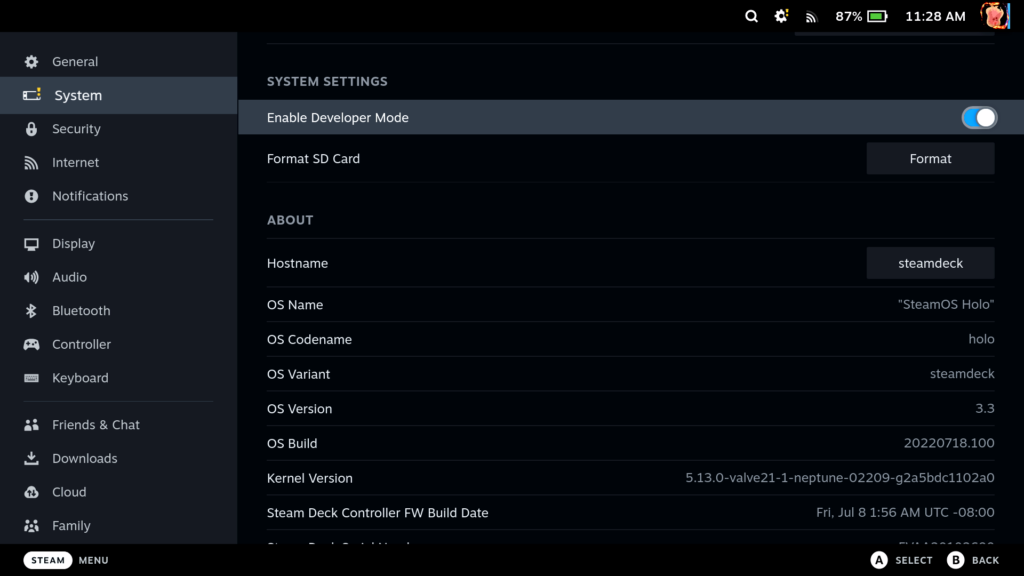
Before doing this, you do have to enable developer mode and CEF Debugging, both of which are easy to do. First, go into your System settings and scroll down until you see the enable developer mode button and turn that on.
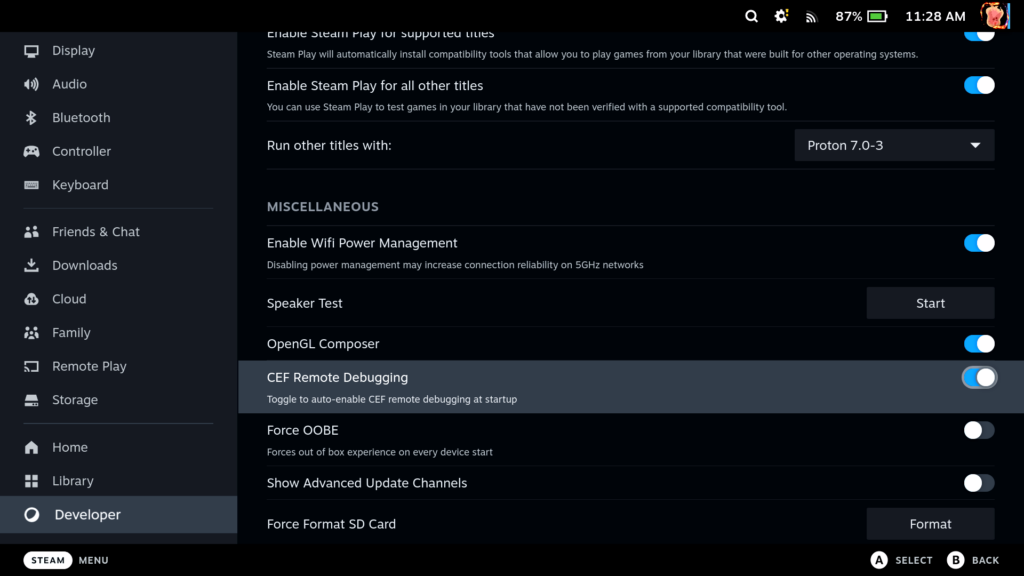
Then, once that’s done, scroll down in your settings to the Developer tab and turn on CEF Remote Debugging.
Now all you have to do is go to Desktop mode to actually get the program!
Installing Crankshaft
You can get Crankshaft easily by going to the Discover store and searching “Crank”. Should be the first option that pops up.
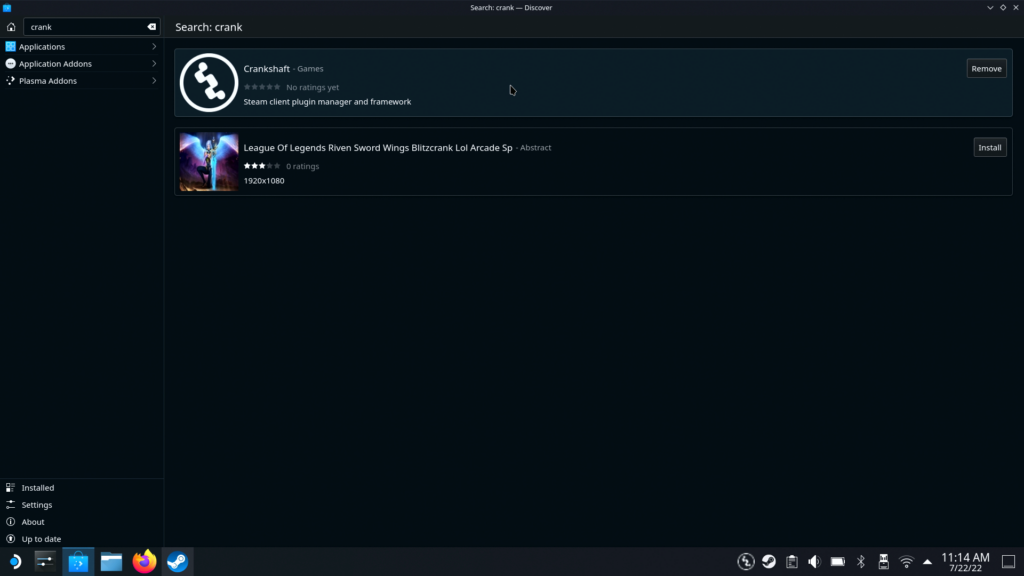
Then, start it from your application list. Once you see the little Crankshaft icon in the bottom right, you are good to go! Hop back into game mode and it is installed! Now we can start configuring Crankshaft and getting the plugins.
Configuring Crankshaft and Getting Plugins
Once back into gaming mode, press your “Steam” button and, if done correctly, you will notice some new options!
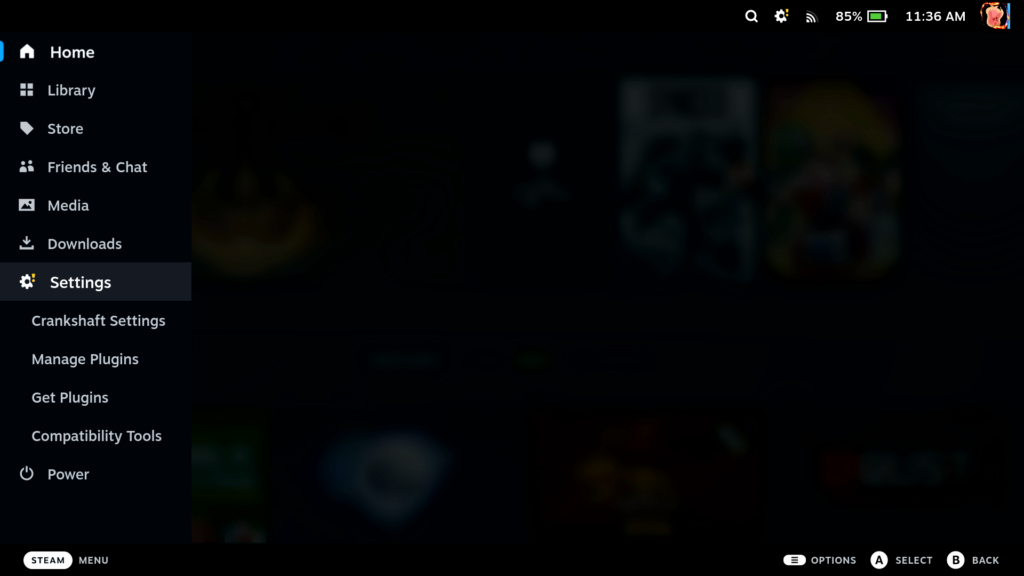
You won’t need to do much in the settings tab for Crankshaft, but if you need to do a quick restart due to plugins not loading, that’s where you would find a restart button! Otherwise, I would first head over to the “Get Plugins” option and start getting some fantastic ones!
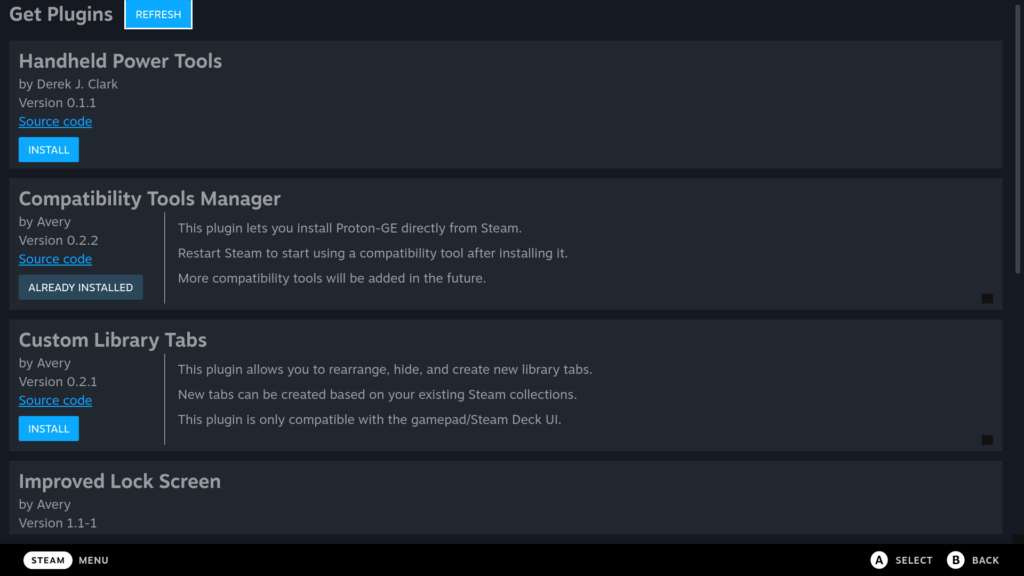
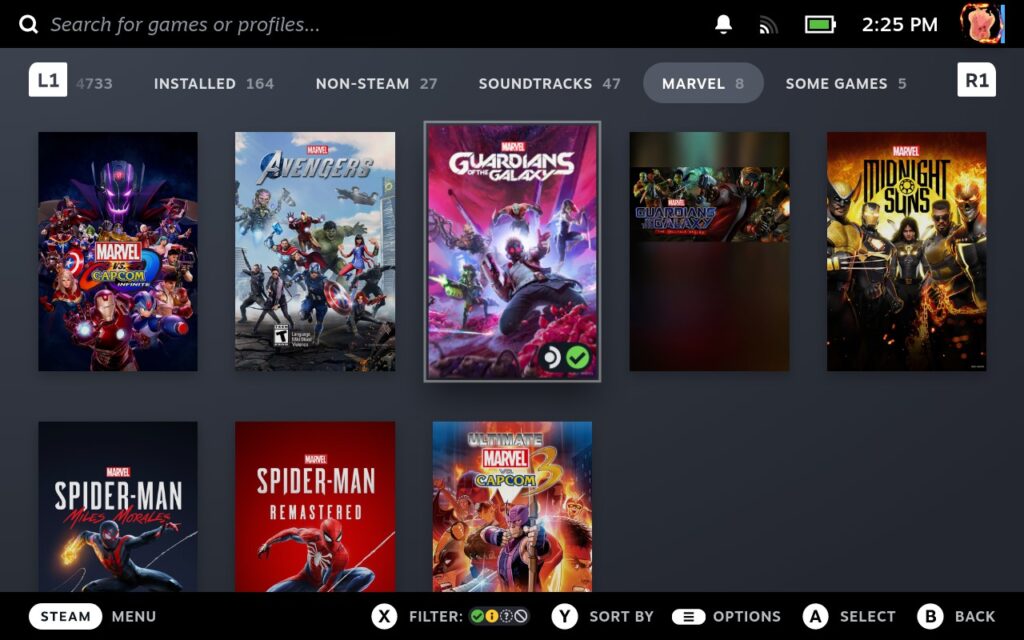
I personally recommend Compatibility Tools Manager and ProtonDB Indicator to start out. ProtonDB Indicator will add a ProtonDB rating at the top of each Steam game and, if tapped, will take you right to their page!
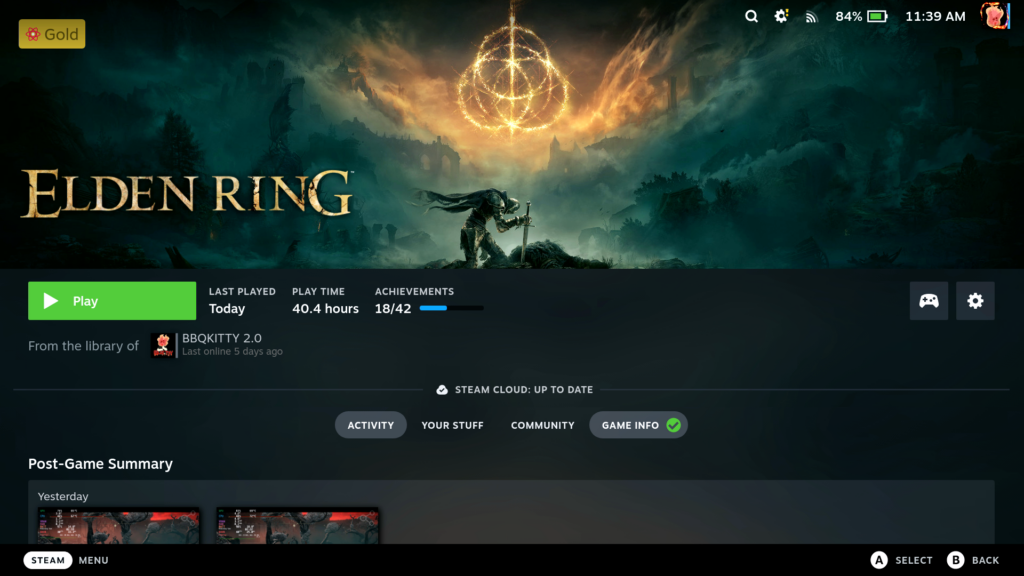
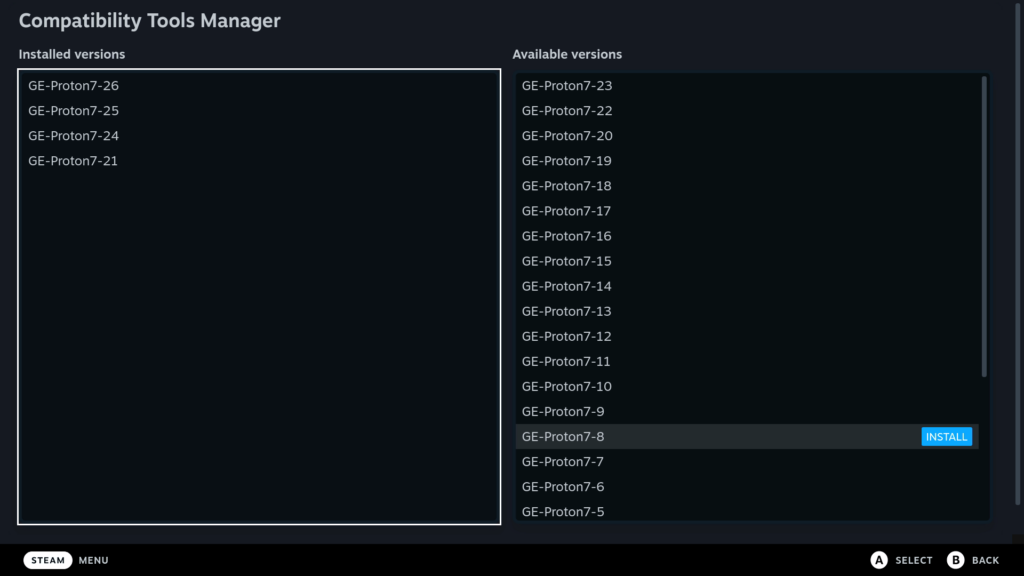
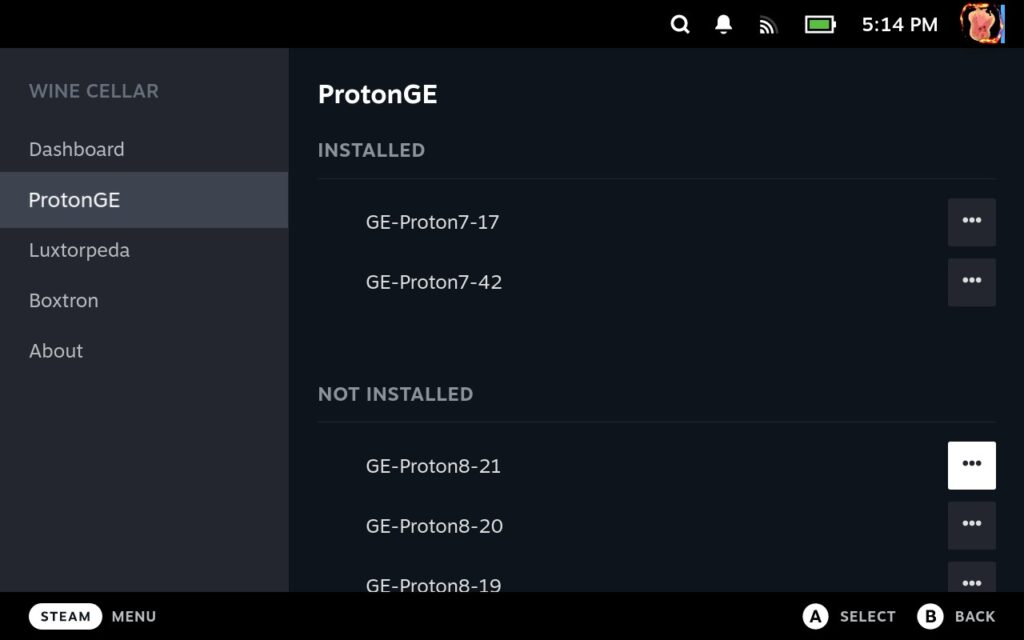
It is a nice tool to just quickly check things. Now, Compatibility Tools Manager will actually allow you to install Proton GE versions from Game Mode! All you have to do is go over to the available versions box, click install on whichever you want, and it is now installed! That’s it! To have it show up in Steam, you do need to restart your Steam client. Just hit the Steam button, scroll down to power, and click “Restart Steam Client”. As of right now, there is no way to delete the older Proton GE versions, so keeping and using ProtonUp-QT is needed. You can check how to get ProtonUp-QT from our Proton GE guide!
The rest is up to you now! There are some enticing other plugins to check out, just be wary! Make sure to research the plugins before using them. Anyone can make them and you want to be 100% sure it is trustworthy.


19 comments
Nick Doran
not working for me either …
Noah Kupetsky
Yeah the main developer stopped working on it. I would consider using Decky now as it is consistently updated. We also are testing our plugin for it too!
Luis
Do you know if the plugin will be available on Decky store anytime? Thanks
Superbods
Is this still working? I dont see anything on the Settings tab.
Sybs
Thanks but just tried this and nothing seems to happen, nothing shows up in the steam menu after starting the app. I’ve not installed any other tools with developer mode before.
Noah Kupetsky
I believe Crankshaft broke and there’s a new way to install it. Though we will be writing a Decky guide soon that has the same features and is a bit more refined than Crankshaft!
DeckedVi
Its availble from SteamDeck Discover Store so maybe its good idea to update this article? 🙂
BarbecuedKitty
Our guide already covers getting Crankshaft from the discover store!
TdoubleT
I am not sure what went wrong. I was on BETA and went back to Stable. I then went back to Beta as I figured why my deck was lagging.
Once in BETA, crankshaft was gone (not longer visible in the Steam menu on game mode). I made sure to follow each steps you listed above. I installed it, removed it (processed done about 4 times) and still unable to see the additional settings tab to add the plugins.
Not sure if something is messed up within the config of the deck but as of right now, I can’t install any plugins or even have Crankshaft as it’s non existent.
Razor
I installed it and I love it! Just a regret Power Tools is not available and I can’t install Plugin Loader in addition to Crankshaft, is there any other way to add Power Tools to Crankshaft?
Thank you!
BarbecuedKitty
I am happy to hear you are enjoying it! There should be a Power Tools plugin for Crankshaft, but as of right now, Crankshaft and Decky Loader aren’t compatible.
Ariel
Awesome, thanks 🙂
Benzo
This broke my deck 🙁 Balderdash. Won’t boot into gaming mode anymore
BarbecuedKitty
Let’s troubleshoot! Have you tried uninstalling Crankshaft in Desktop mode and rebooting it into game mode?
Losy_Golab
Hi there, same issue.
Followed the Guide. After installing in Desktop, I wanted to head back into Gaming Mode to follow the instructions.
Deck showed the Logo for a few seconds, then nothing. I can see my cursor when I move my external mouse on a black screen. Waited serveral minutes, nothing changed. Then I forced a reboot/shutdown by holding the power button. Now it stays like this everytime. It boots, shows the Deck Logo followed by a black screen. Cursor appears, when I move my mouse. Can I force a switch to desktop mode via Buttons somehow?
Losy_Golab
Hi there, little follow-up here.
Had to re-image my deck… You should place a big fat red warning on top of this Tutorial, that crankshaft doesn’t get along with Decky. Found out afterwards, deep in the comments of some Reddit thread :/
BarbecuedKitty
Hello! We can absolutely add that warning, but this is the first I have heard of needing to re-image the Deck due to a conflict between the 2 though. We will look into it.
planet_doobie
Other deck reimaged here due to that
BarbecuedKitty
Right now Crankshaft is having some issues and needs to be updated. For now, it needs to be uninstalled.