


Final Fantasy 7 Remake Intergrade is the remake of one of the most well-known JRPG games ever made. With the original being made in 1996, this remake made a ton of changes and improvements, including a graphical overhaul, real-time combat system, and expanding the story into not just 1, but 3 parts told in 3 separate games. If you loved Final Fantasy 7 and wanted to see an intricate re-telling of the original story that expands more than you would have ever thought, this is the game for you.
Final Fantasy 7 Remake Intergrade On Steam Deck
FF7R on Steam Deck seems to work really well out of the box at first, but progressing through the game shows its cracks. The biggest one would be that Dynamic Resolution is automatically turned on without an in-game way of turning it off. The in-game setting selection is abysmal, only giving the option to change resolution, texture and shadow resolution, framerate cap, and characters displayed.
I was able to disable Dynamic Resolution with a mod though, which not only made the game look better, but run significantly better too. You can find this mod and how to install it below this review. With Dynamic Resolution off, I used Steam to force the resolution to 1024×640 and upscaled with FSR to save on performance, which it did while still looking very good.
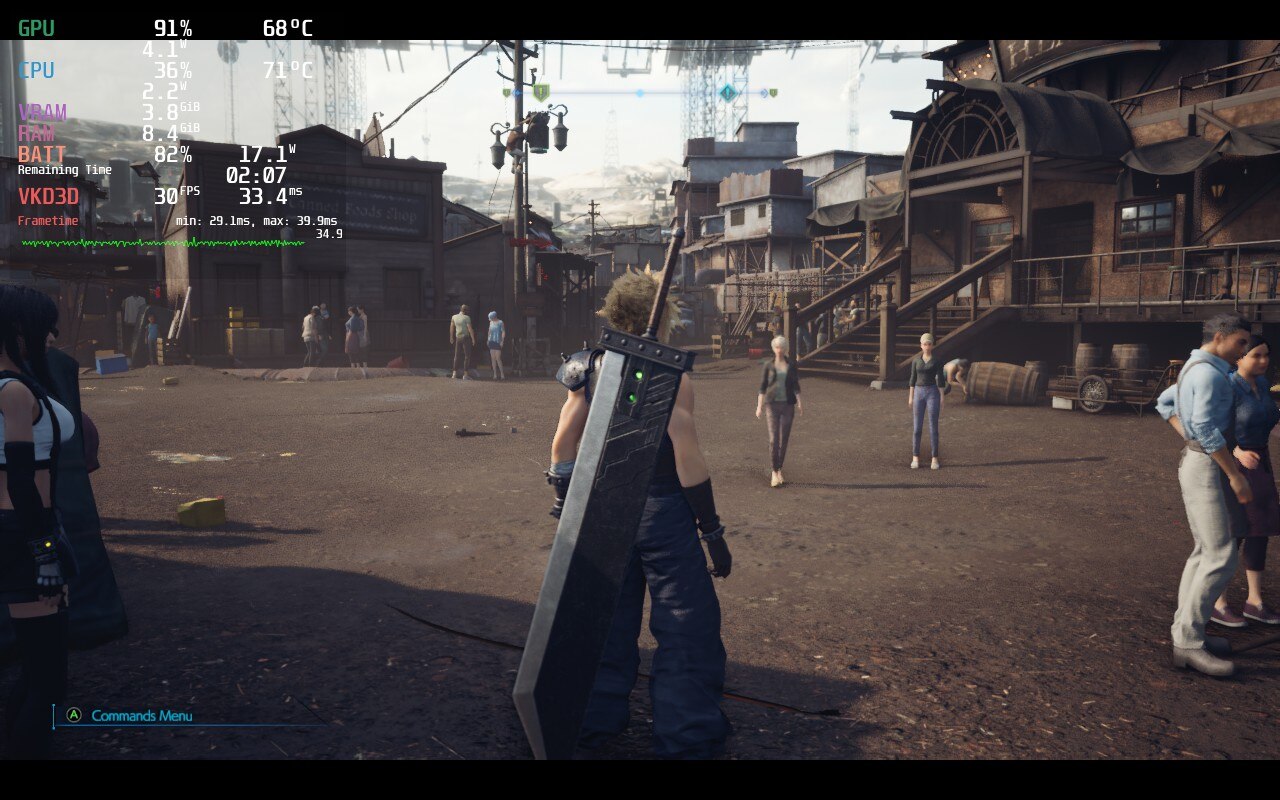
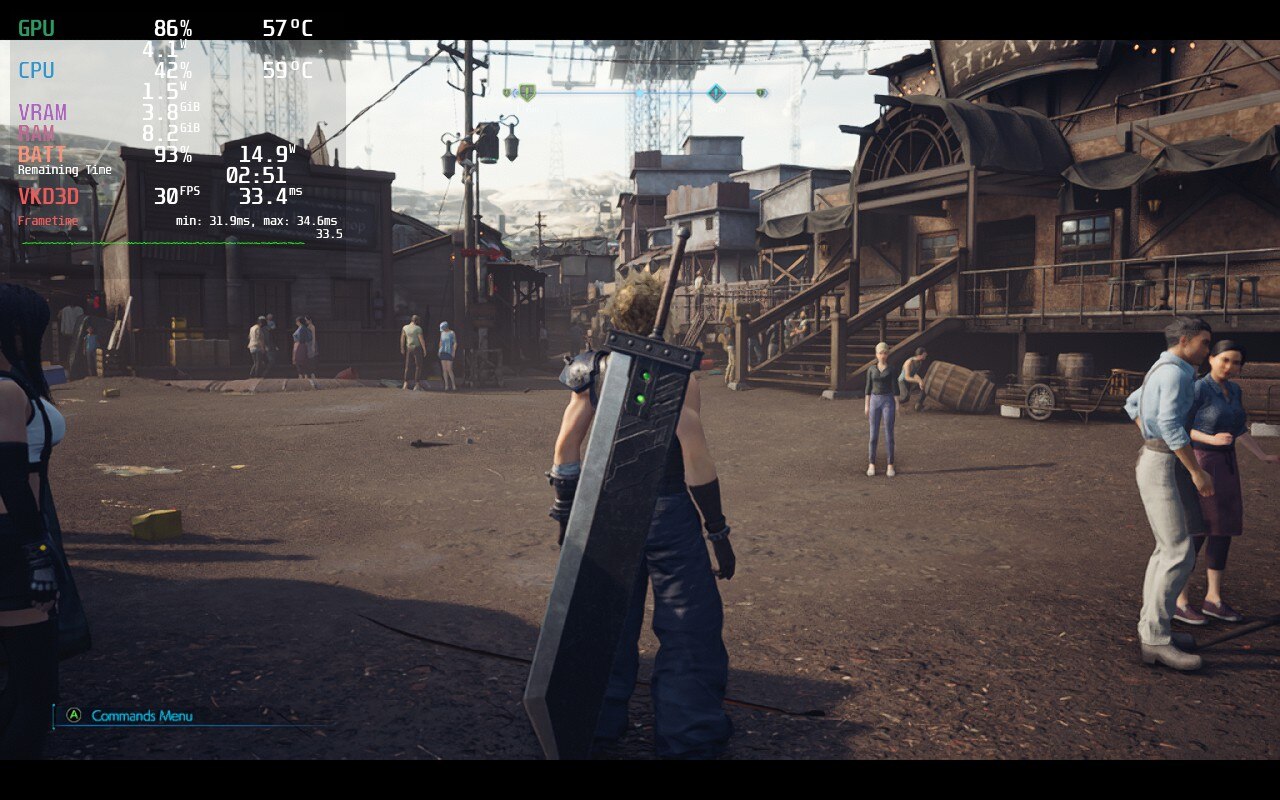
While there’s slight worsening of the text, the gains in temperature and battery life are obvious and phenomenal. The 1024×600 with FSR has the disable dynamic resolution mod installed.
I tested this running through one of the most demanding areas in the game, both in the base game and its DLC, and got significantly less temps and battery usage overall while still looking better. During gameplay, I got average temps for CPU and GPU around 70c while battery usage tended to hover around 15W. I set the texture and shadow resolution to low since I felt they didn’t change a whole lot visually, but did keep the framerate more stable. I didn’t see a whole lot changed with characters displayed, so I kept it at 2 and the framerate cap can be set to 30 or 60.
If you plan to use our 40 FPS build, or switch between the two builds we provided, keep this set to 60 in-game. Though I would recommend sticking with a more stable 30 FPS as it is significantly better with temps and battery throughout the game overall. I did also try launching with DX11, but I didn’t feel there was any major difference in performance to warrant it.
Testing, testing, testing…
Throughout my testing, regardless of how I set the game, there were stutters when running through areas. This is actually due to the engine this game runs on, Unreal Engine 4. On Steam Deck, when a UE4 game is loading in new assets/areas, it has been known to stutter pretty wildly. It calms down really quick, and doesn’t necessarily affect temps or battery much, but it is noticeable. Other than that, I didn’t really notice any bugs or glitches.
Final Fantasy 7 Remake is a wonderful fit for the Steam Deck. I have always felt like JRPGs are perfect on this device and this just confirms that. With the recommended build, I would say FF7R is very playable and an enjoyable experience. I would have loved 40 FPS to be a bit more stable, and it still is a little blurry even just getting the settings right, but it is playable. Needing to mod it to make it playable is a little bit of a nuisance too, but it is a huge help being able to disable that. Overall, I would recommend playing the game on Steam Deck, just note that it is a little process with some compromises.
Need some help understanding how we got to our score? Check out our Guide to Steam Deck HQ.
Our review is based on the PC version of this game.
If you enjoyed this review, be sure to check out the rest of the content on SteamDeckHQ! We have a wide variety game reviews and news that are sure to help your gaming experience. Whether you’re looking for news, tips and tutorials, game settings and reviews, or just want to stay up-to-date on the latest trends, we’ve got your back!






9 comments
Max
I think this review would be easier to find in search if it was titled “Final Fantasy VII” instead of “Final Fantasy 7”. Most people use roman numerals when writing about Final Fantasy.
FrankT
Hi guys, game runs perfect with this settings, but im facing an issue, and im not sure why… everything is perfect, but in the cinematics, the sound effects are delayed about 1-2 seconds, but only the sound effects, voices are good… quite strange.
Anyone knows this issue?
Alan
“I do have the line “-d3d11″ in the launcher options.”
What does this do?
Noah Kupetsky
This will force the game to run using DirectX 11, which is easier on the system than DirectX 12 is.
Jokie
How would you know that it’s running directx11
Zh4nk0u
Im using the following setup now, and it runs buttery smooth.
Steam Overlay: TDP set to 12
Refresh rate: 60
FPS limit: 30 (tried unlimited, ingame and out of game, but limit 30 gave best results)
Ingame:
1280×720 resolution
Textures: high
Shadows: low
Characters displayed: 4
FPS Limit: 30 (tried 60, 90 and 120, but it all gave worse results).
The line remained “flat” when using steam cap and ingame cap combined.
Game showed an average usage of 15 W on battery. So about 2,5 hours of gameplay.
Really stable, and no need for mods.
I do have the line “-d3d11” in the launcher options.
BarbecuedKitty
I would be curious to see screenshots just because the dynamic resolution is auto enabled and felt like it made the game blurrier than it should have!
Zh4nk0u
Dynamic resolution only kicks in when playing above 30 fps.
Then u have to tinker with .ini files to disable it.
Alan
“I do have the line “-d3d11″ in the launcher options.”
Comments are closed.