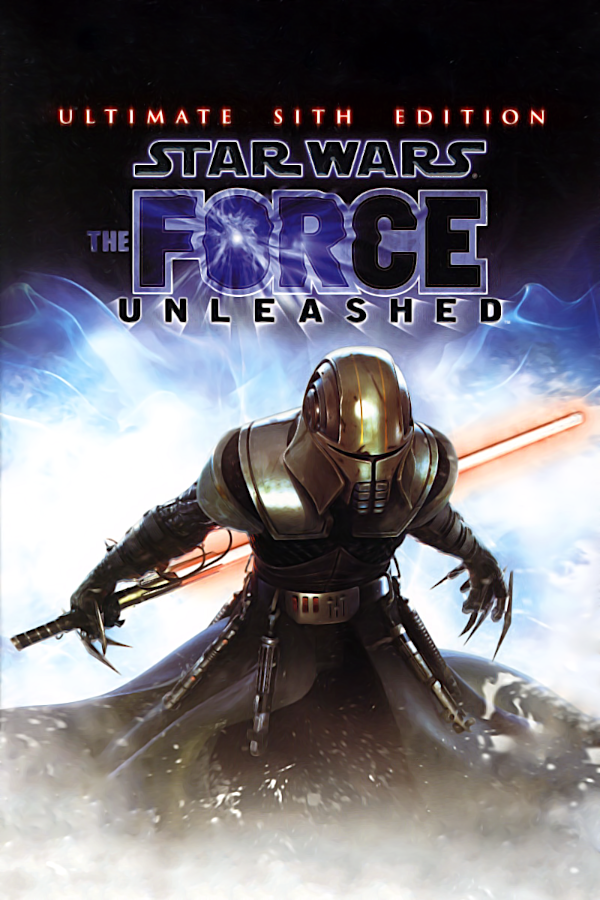

Star Wars: The Force Unleashed is a third-person action-adventure title where you take on the role of Starkiller, Darth Vader’s apprentice, intending to ultimately overthrow the Emperor. Follow Starkiller on his journey in this look at an alternative history of Star Wars.
Graphically speaking, The Force Unleashed holds up pretty well for a 2009 game. It’s nothing to write home about, but there are some nice reflections in areas such as Imperial ships. They do have lovely shiny floors in those things. Characters also have basic shadows, and there are some decent visual effects when using force powers such as shockwaves and distortions.
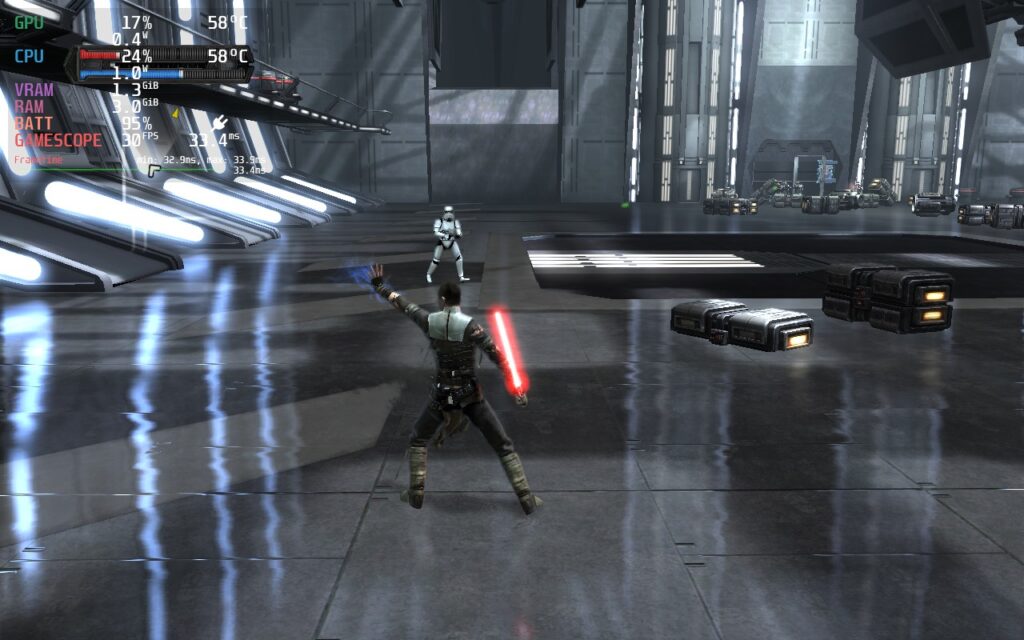
Combat is, however, what most of this game is about. I found the lightsaber to be a somewhat ineffective and clunky weapon, nor did it feel very satisfying to use. The somewhat stunted movement when using the lightsaber makes it feel useless at anything but very short range. The force powers, however, are really fun to play with. You can pick up enemies, throw them about like ragdolls, push them against objects, and throw objects into them; all are valid ways of defeating enemies. The physics system is really nice for a 2009 game and creates an environment where a lot of weaker enemies feel like toys, making you feel extremely powerful.
But how does the game run on a Steam Deck? Well, let’s find out:
Star Wars: The Force Unleashed – Steam Deck Performance
When first booting the game, you are presented with a launcher. You can’t control this with anything but your touchscreen. All I had to do was change the resolution to 1280×800 (which the game does support) and change the input device from Keyboard + Mouse to Xbox 360 Controller. This makes the game control perfectly fine with the Steam Deck controller. Also, make sure “High Detail” is ticked if it isn’t already. This is the only graphical setting I noticed, and interestingly, there are no graphics settings in the game.
By default, the game has a 30FPS lock, and you can’t remove it without modifying the game. There is an FPS unlocker out there, which you can use to set your FPS to 40, 50, 60, or unlimited; however, physics bugs will appear at higher frame rates. Because of this, I’m only recommending the 40FPS executable. The physics issue is very minor at this frame rate. Having tested the 60FPS version, the physics issue could cause you to make mistakes, so I don’t recommend using it.
Just copy the 40FPS EXE for The Force Unleashed and overwrite your current SWTFU.exe in your installation directory in Steam.
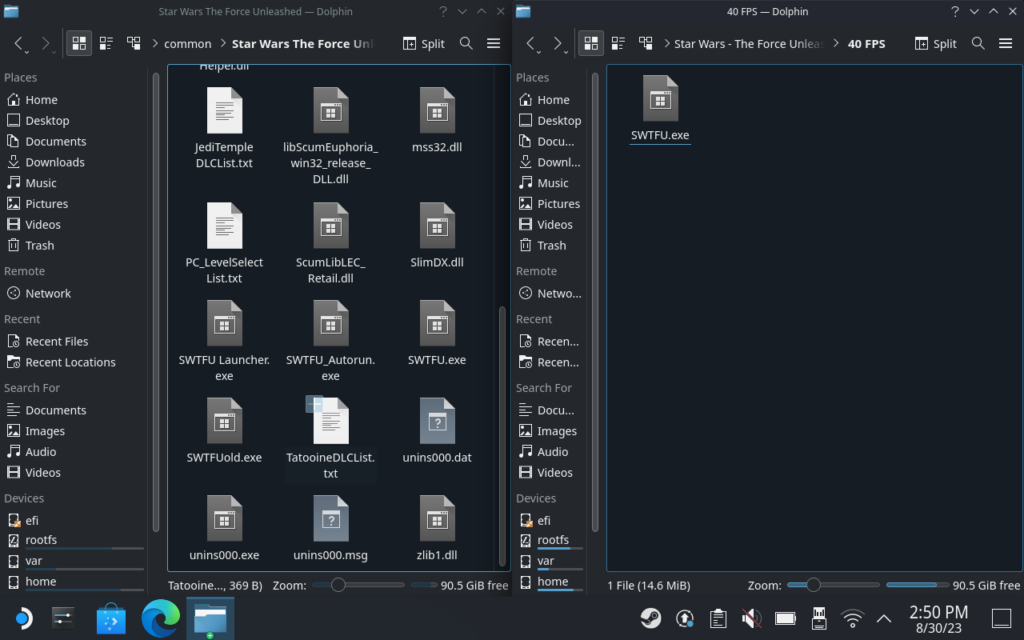
Installation Directory:
/home/deck/.steam/steam/steamapps/common/Star Wars The Force Unleashed/
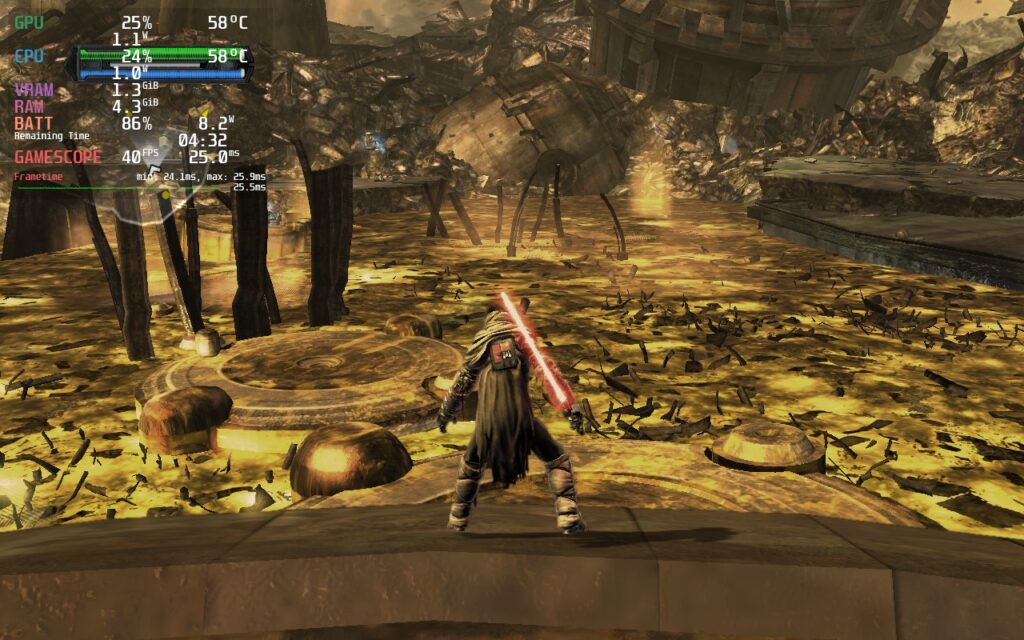
We’re using 1280×800 resolution and “High Detail” in the launcher. You should enable the frame limiter in SteamOS, as the CPU seems to work overtime if we don’t impose our own framerate limit.
The Settings
Recommended Build – 40 FPS with FPS Fix
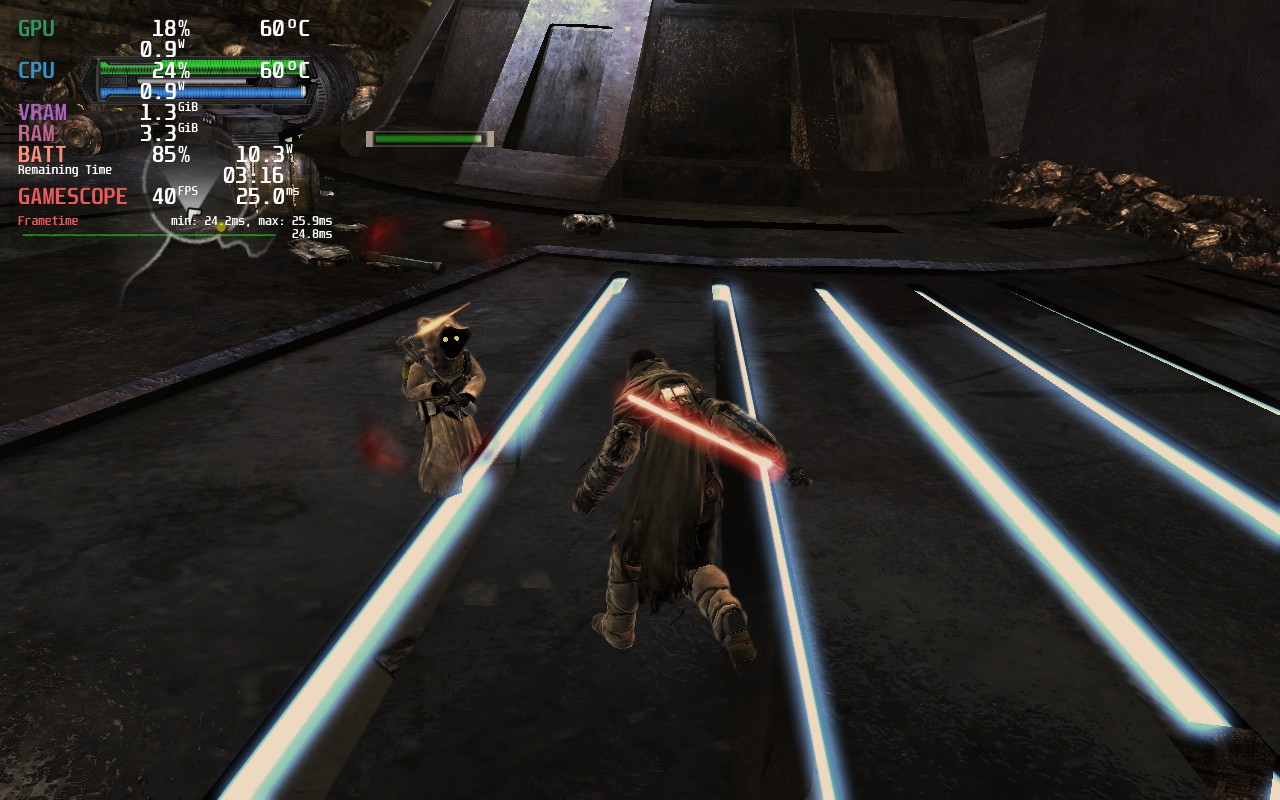
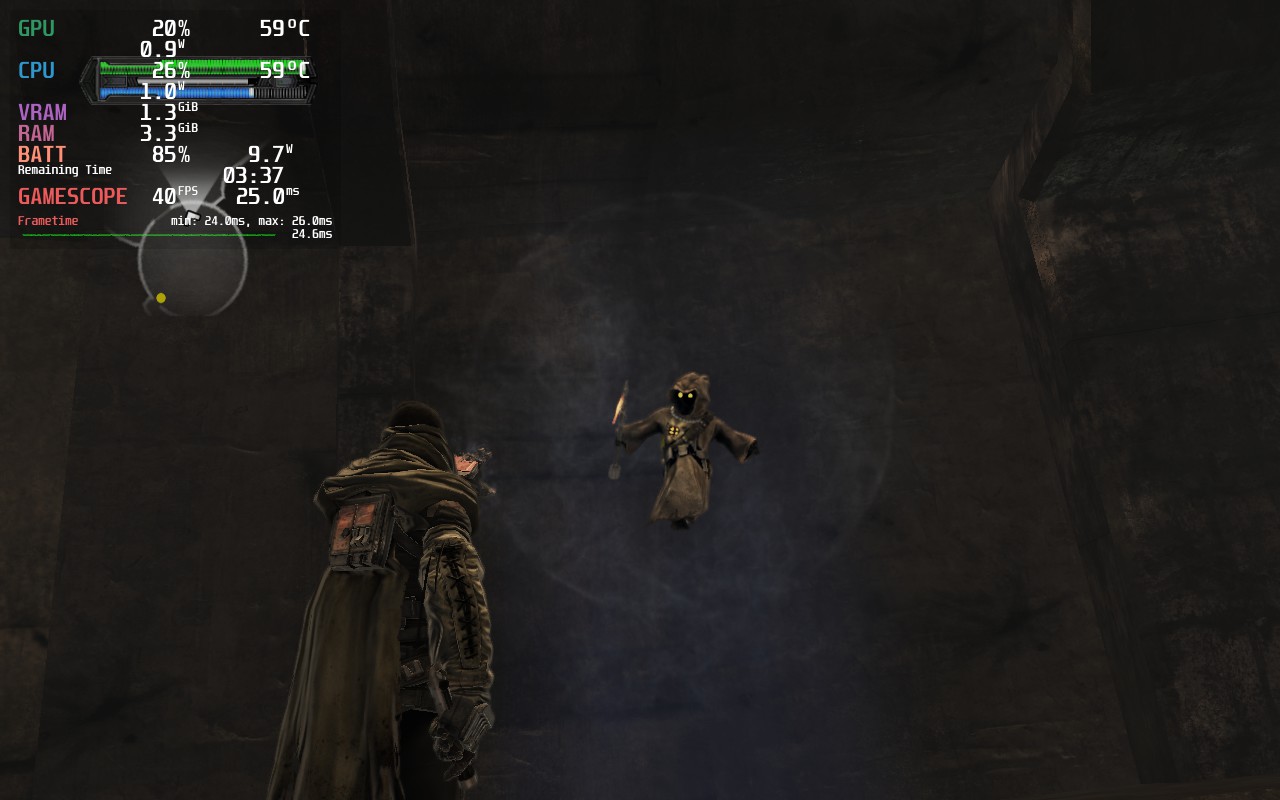
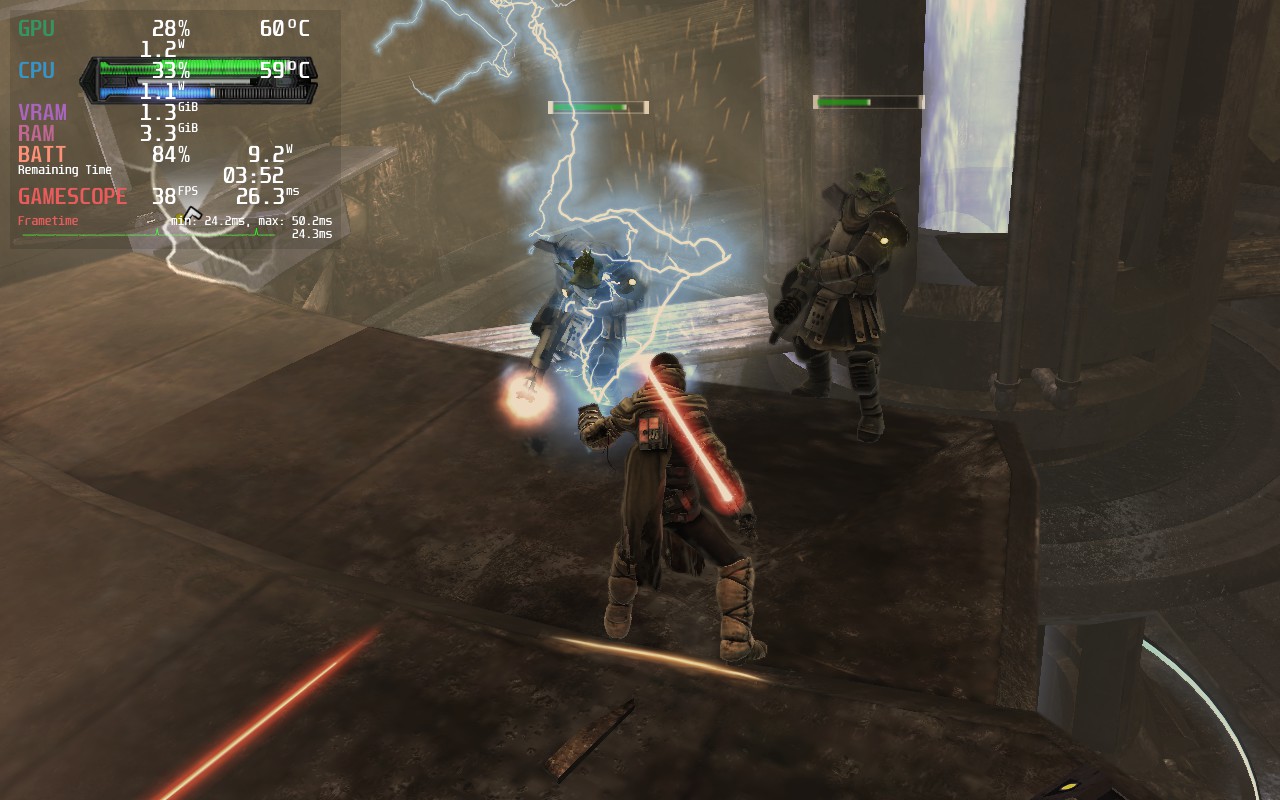
For 40FPS, we can set a 5W TDP and run the game smoothly. Battery life stays strong, hovering at just above 5 hours. If you’re fine with downloading the FPS Unlocker, we definitely recommend these settings. The extra FPS makes the game feel and look smoother, with hardly any compromise on battery life.
30 FPS – No FPS Fix
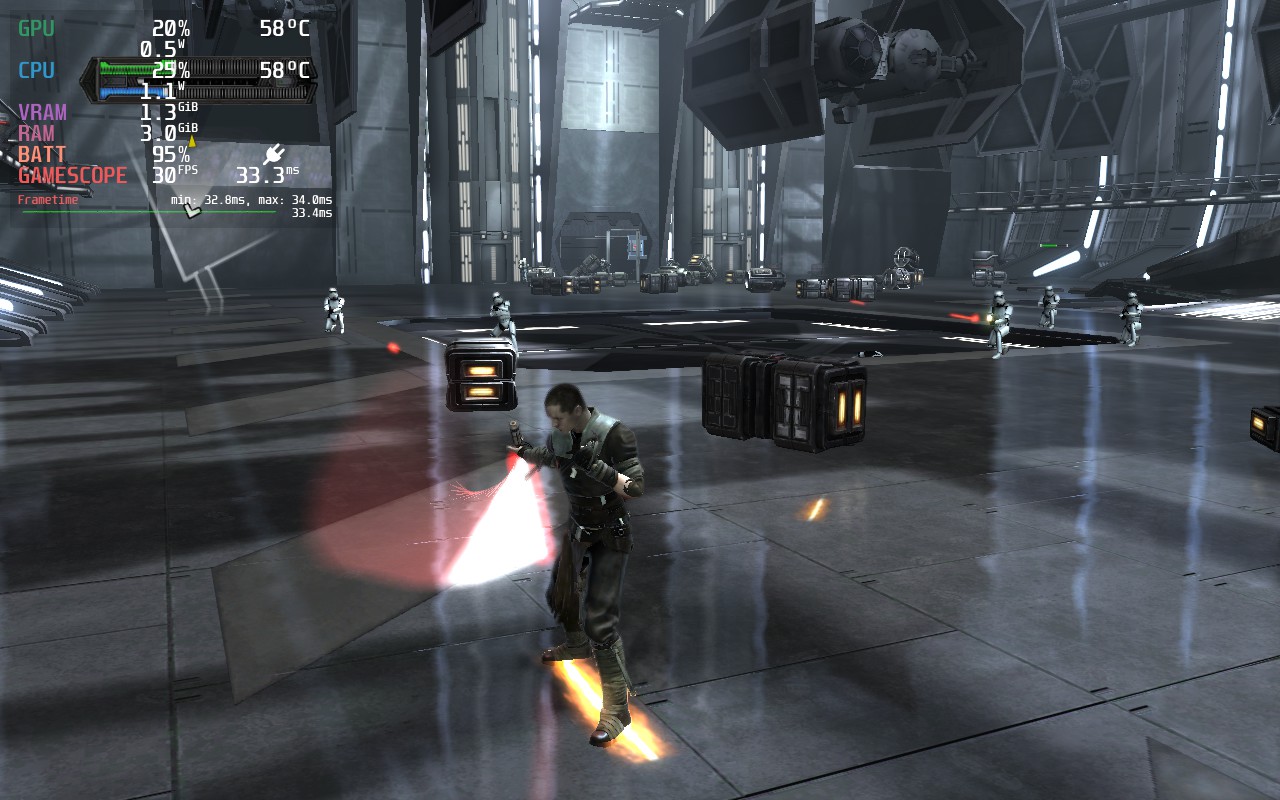
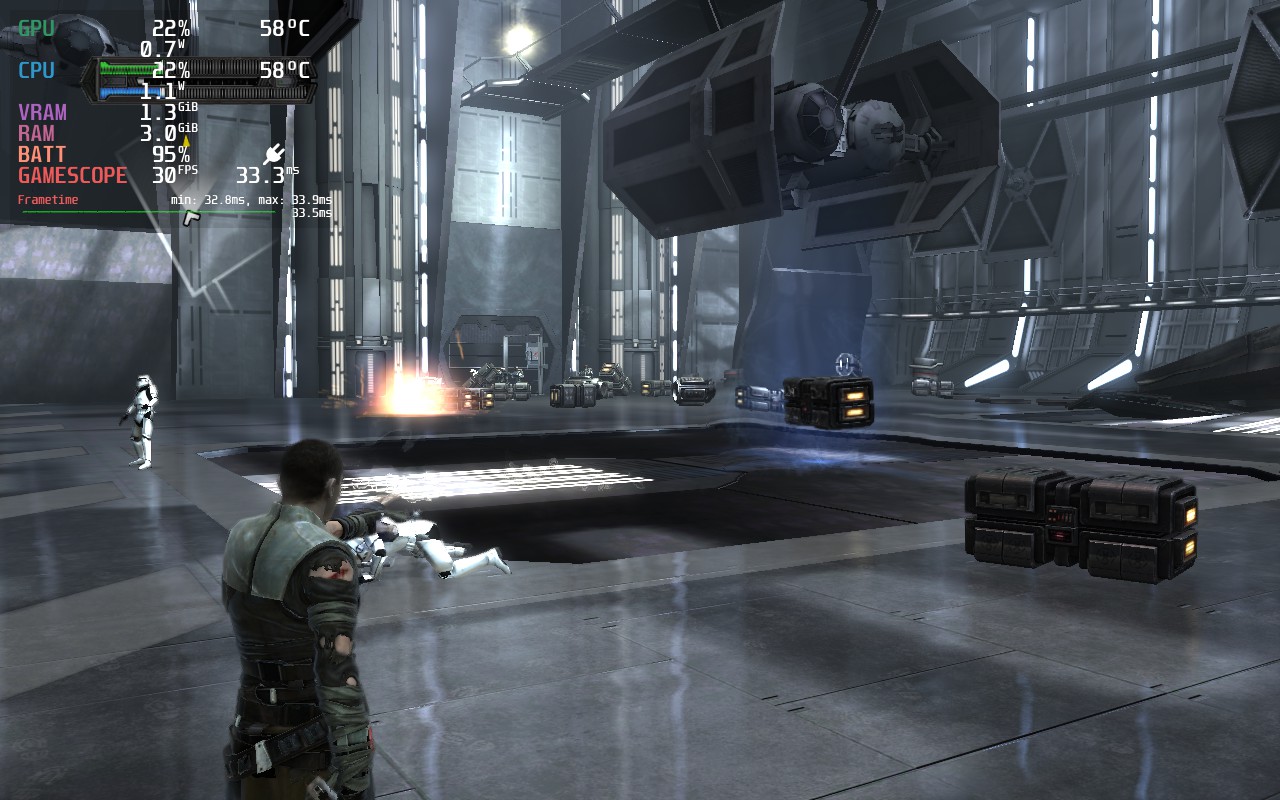
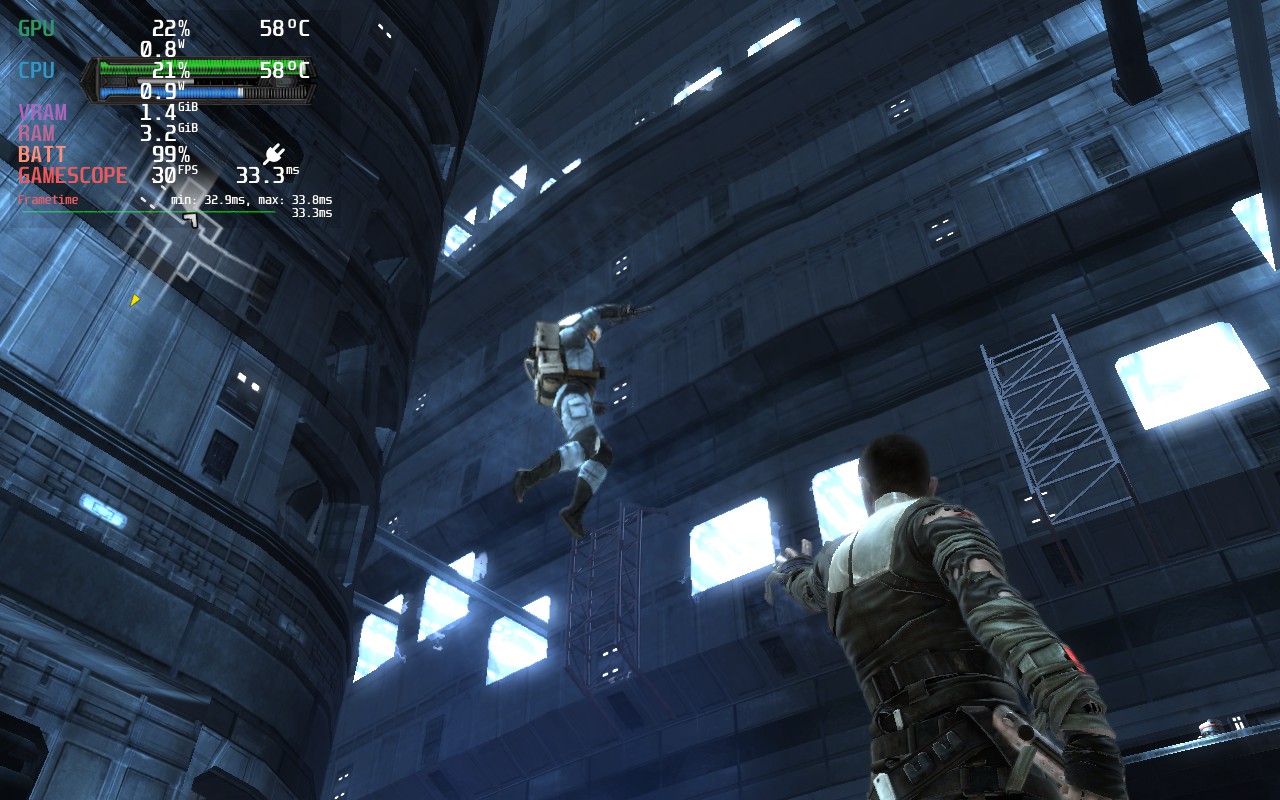
30FPS likewise needs a 5W TDP setting to stay stable. The game can get pretty intensive on a single CPU thread, especially when first loading an area. This can result in inconsistent frame times, but they usually clear up after a few seconds. A 5W TDP gives a solid 30FPS performance and good battery life. You can expect around 5 and a half hours of battery life at these settings.
Accessibility
In terms of accessibility, the game offers subtitles for dialogue, 4 difficulty levels that can be changed during gameplay, and a couple of ways to simplify controls, such as toggling instead of having to hold certain buttons. The subtitles are also of a good size and easily readable on the Steam Deck’s screen. There are also cloud saves and controller support in this game.
Possible Issues
If you are encountering inconsistent frame times, try to pause and unpause the game; this will even out the frame pacing. I’m not sure why this happens, but it fixes it. It seems to happen each time you enter an area, load a saved game, or any form of cutscene plays. We do recommend enabling SteamOS’ built-in frame rate lock since this helps the frame time be more consistent, as the game naturally has poor frame pacing. At points, I noticed the game will suddenly accelerate to 50 or 60FPS before relocking if you don’t use the SteamOS lock.
There are some graphical glitches in the game, although it appears that they may be the game itself rather than any fault of Proton or the Steam Deck, most noticeable on far away objects and on some liquid surfaces.
Conclusion:
The Force Unleashed wasn’t my favorite Star Wars experience. I’ve had a lot more fun with Jedi Knight: Jedi Academy in the past, and the newer games like Fallen Order definitely surpass TFU. But if you haven’t played this game yet and you’re looking to get a quick and cheap Star Wars fix, I don’t think TFU is a bad choice. It also runs pretty well on the Deck, especially when using the FPS Unlocker to make it feel extremely smooth.
Our review is based on the PC version of this game.
If you enjoyed this review, be sure to check out the rest of the content on SteamDeckHQ! We have a wide variety of game reviews and news that are sure to help your gaming experience. Whether you’re looking for news, tips and tutorials, game settings and reviews, or just want to stay up-to-date on the latest trends, we’ve got your back!