


After a long time of waiting, Overwatch 2 has finally arrived on Steam. So, what does this famous Free-To-Play Hero Shooter bring to the table?
There are over 30 characters or “heroes” to choose from, each with their own unique moves and playstyles, so you should be able to find one that fits how you like to play. Characters are split into 3 main classes: Tanks, Damage, and Support. My favorite is damage, but it’s up to you how you want to play the game. This is a fast-paced and competitive first-person shooter, so having good reflexes and stable performance is essential. We’re also treated to cross-play and cross-progression, so if you’ve been used to playing the game on consoles or over on Battle.net, you can carry on your progress on Steam.
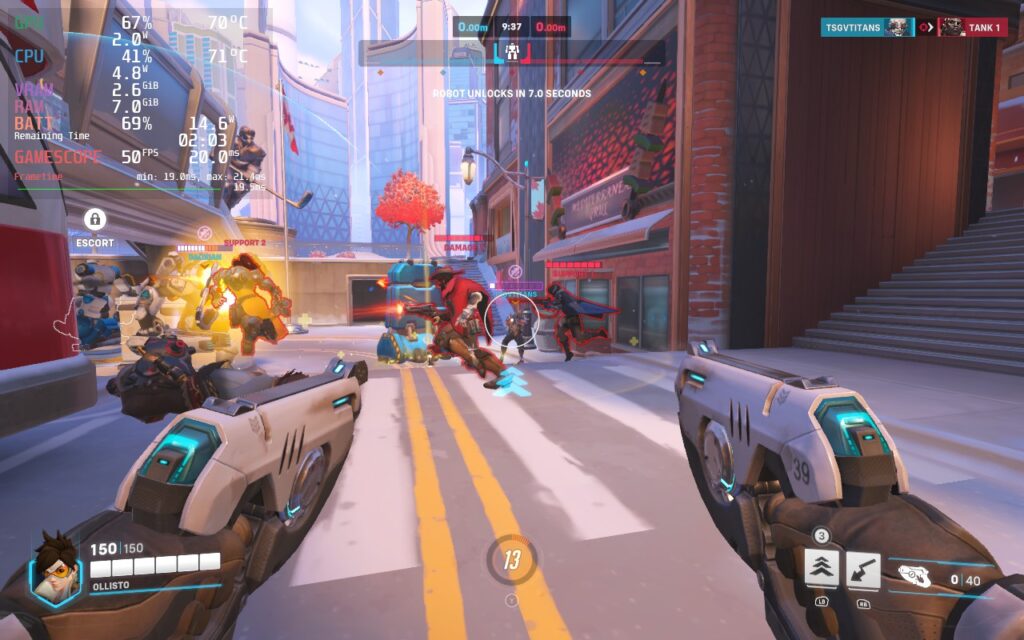
Given that Overwatch 2 is widely known as an eSports title, you’d imagine it’s pretty optimized, right? Well, let’s see how it performs on the Deck.
Overwatch 2 – Steam Deck Performance
Things get off to a decent start. The default controller layout works well, and menus can be controlled with the D-Pad or Analog stick. There is native support for 16:10 resolutions, including the Steam Deck’s native 1280×800, and text is also reasonably sized and perfectly readable on the Deck’s display.
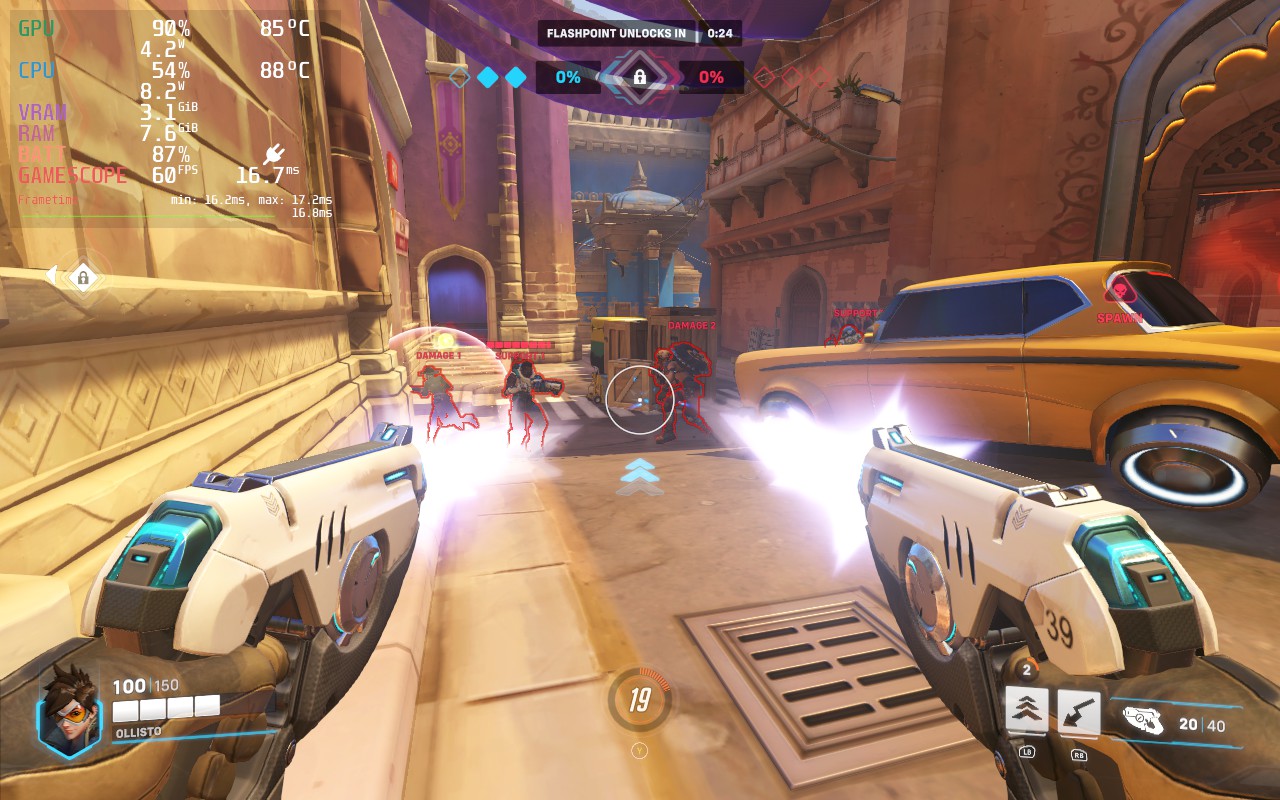
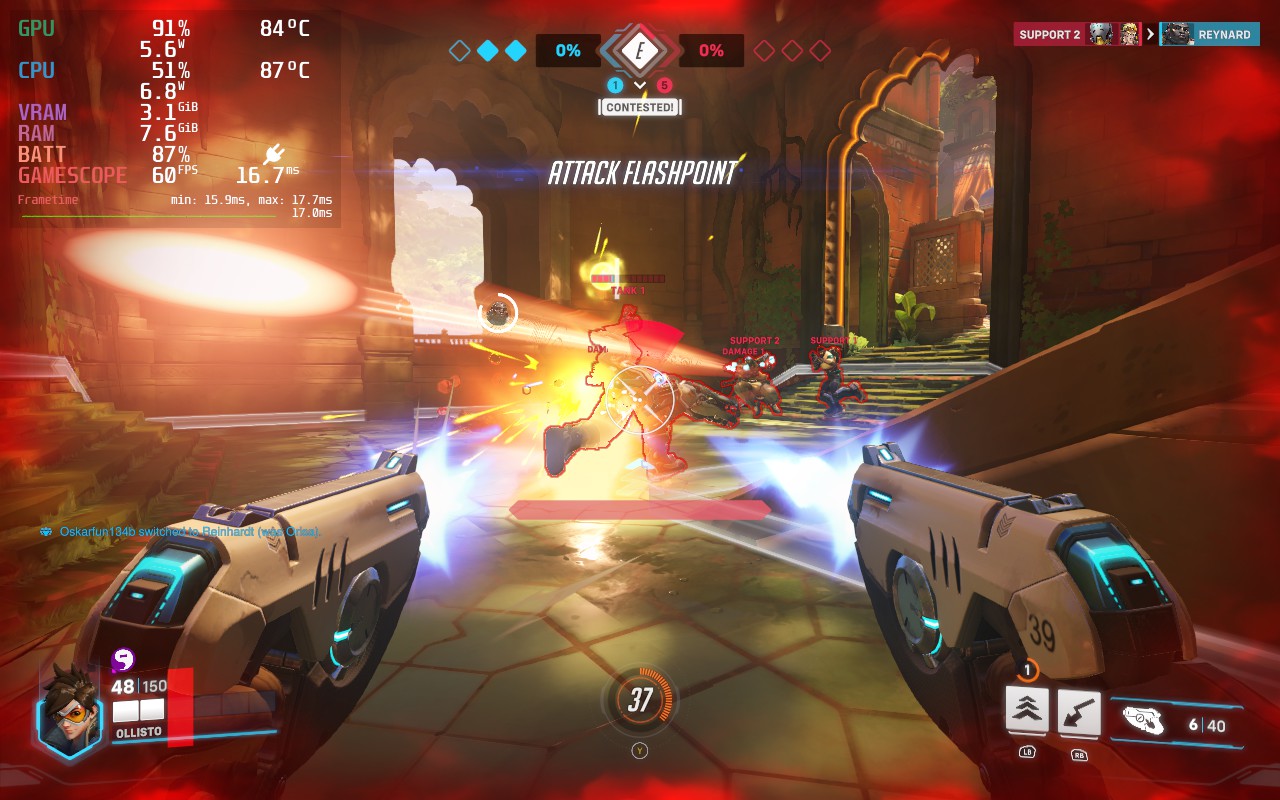
But how well does the game run? Ideally, we want a 60 FPS experience, and that’s exactly what we can get with the Deck.
The Settings
Competitive Build – 60 FPS (Recommended)
60 FPS is fairly easy to achieve on the Steam Deck. For this, we simply set the game to its “High” preset to get a good baseline. Then we change “Dynamic Render Scale” to Off, change “Render Scale” to Custom, and set it to 100%. Then set the Frame Rate to Custom, and set that to 60. In the Graphics Quality tab, we’re also lowering AA to use FXAA and not SMAA. Here are the settings in screenshot form if you want to see them for yourself. You can click to enlarge the images.
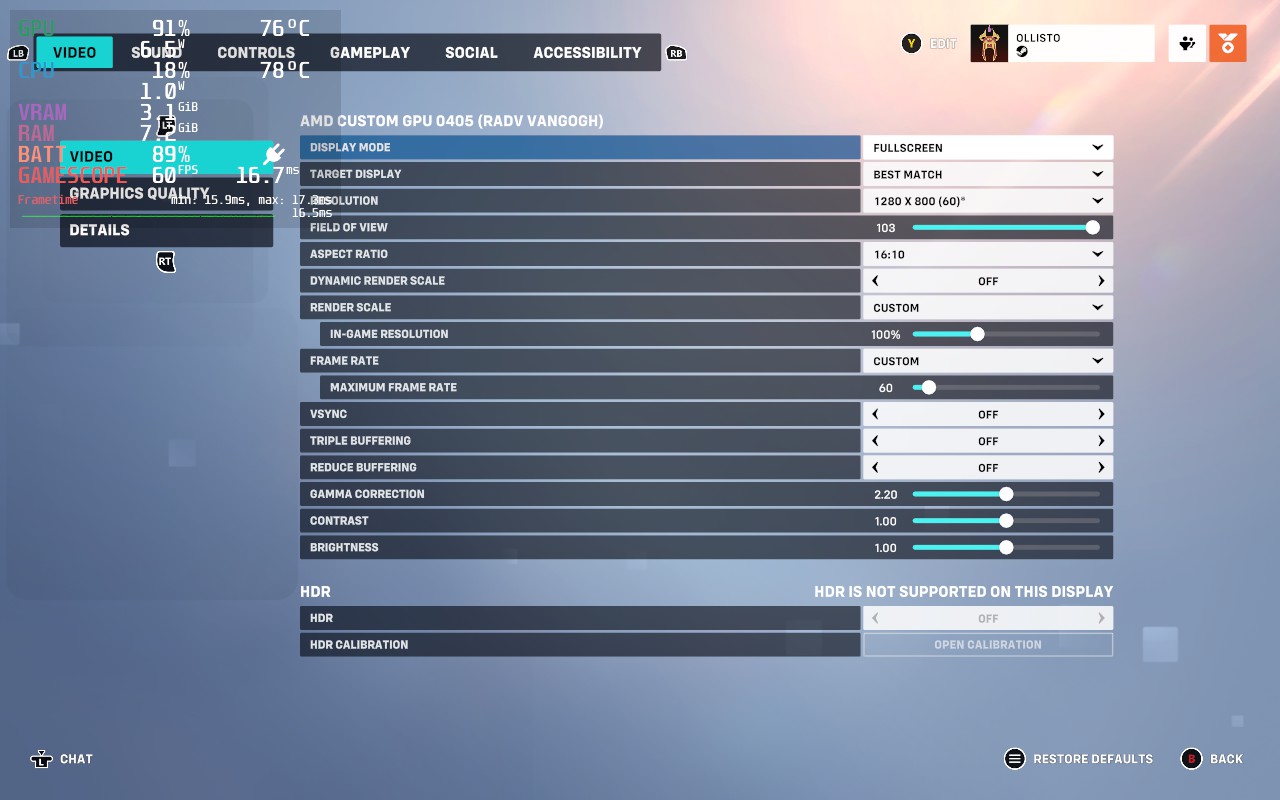
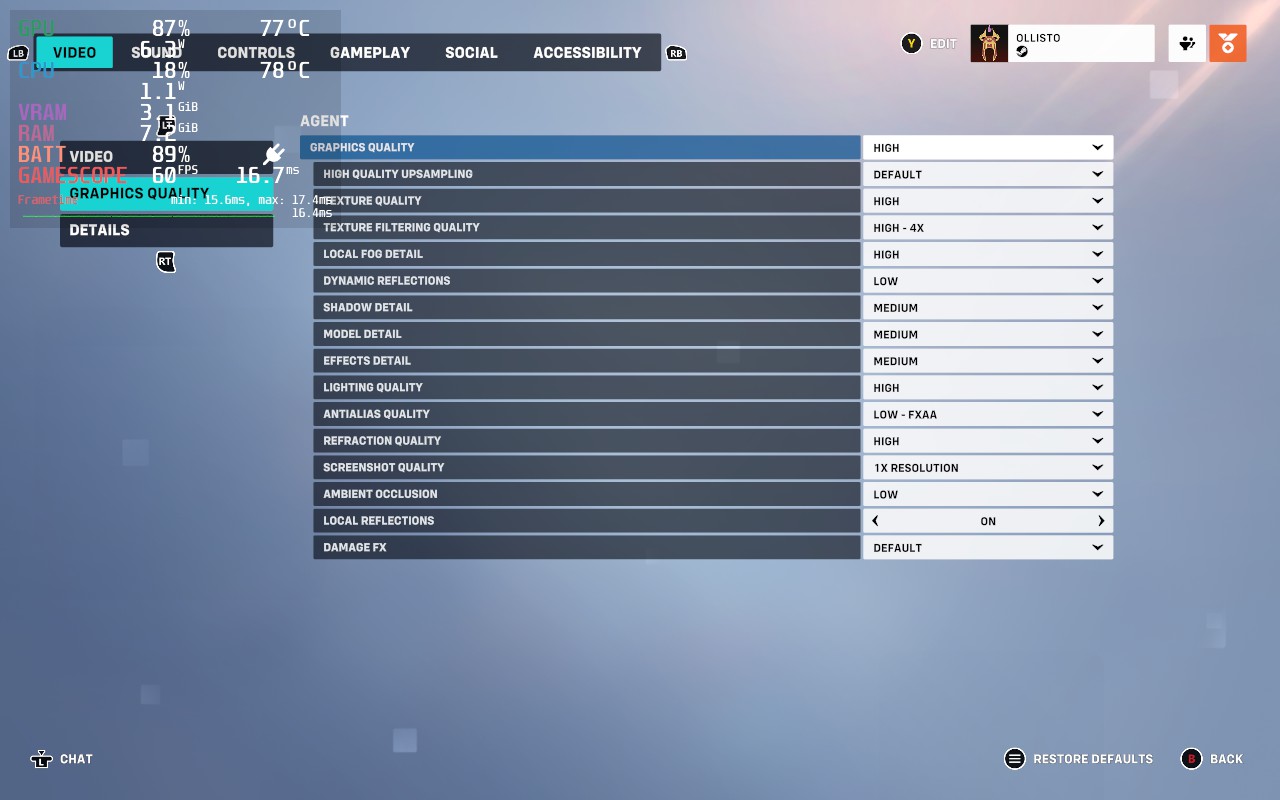
At these settings, I noticed basically no drops from 60 during 3 test matches. The downside, however, is that the battery life is very poor. You should expect no more than 90 minutes of battery life. The Deck can also feel pretty hot in your hands, reaching 90C often.
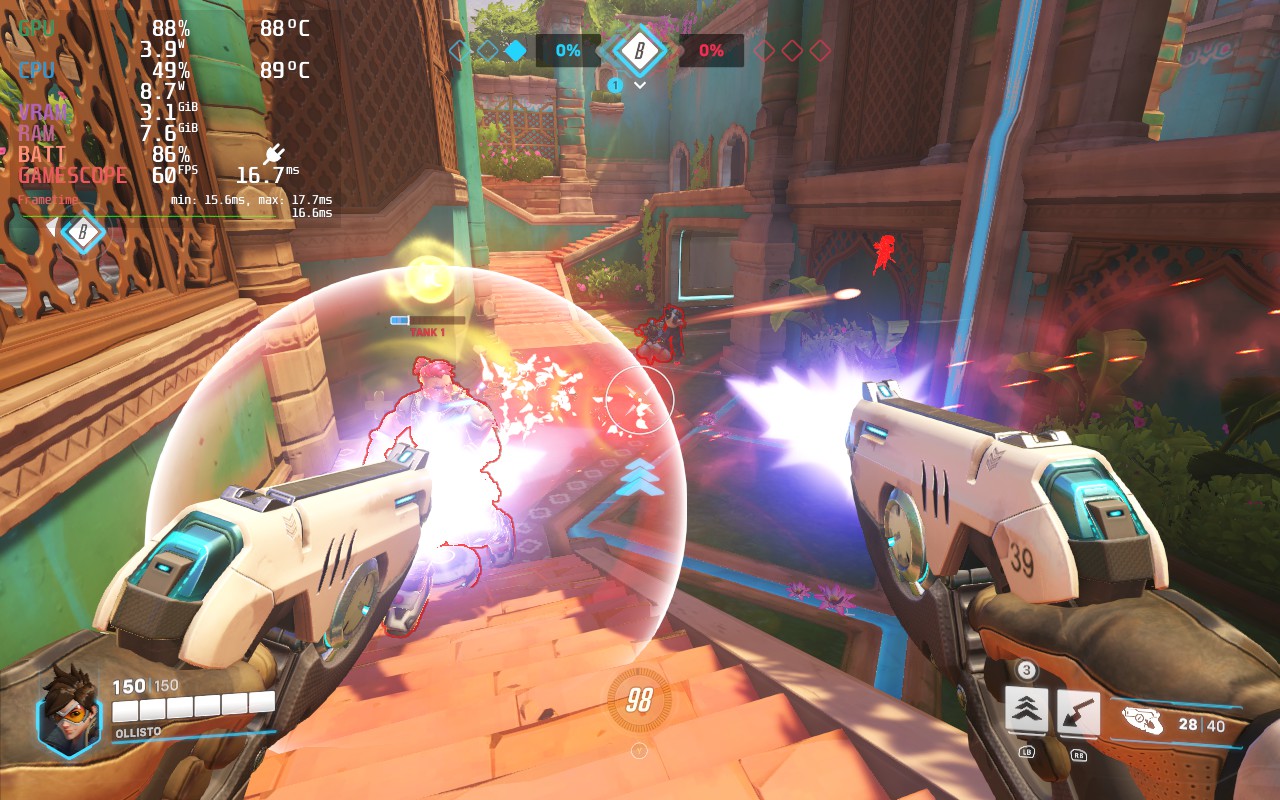
Balanced Build – 60 FPS
If you want settings that make the Steam Deck run slightly cooler, select the “Medium” preset, and then do the same as above: Dynamic Render Scale Off, Render Scale to Custom, 100%. Frame Rate to Custom, 60. FXAA is already used on the Medium preset, so we don’t need to change this. The advantage of using Medium over High is that we can lower our TDP limit from 15W to 12W in the SteamOS settings. This buys us up to 30 minutes extra battery life, meaning you can possibly squeeze out 2 hours of gameplay. It also keeps the Deck cooler and more comfortable to hold, with temperatures usually holding around 80C and not 90C.
Battery Life Build – 50 FPS
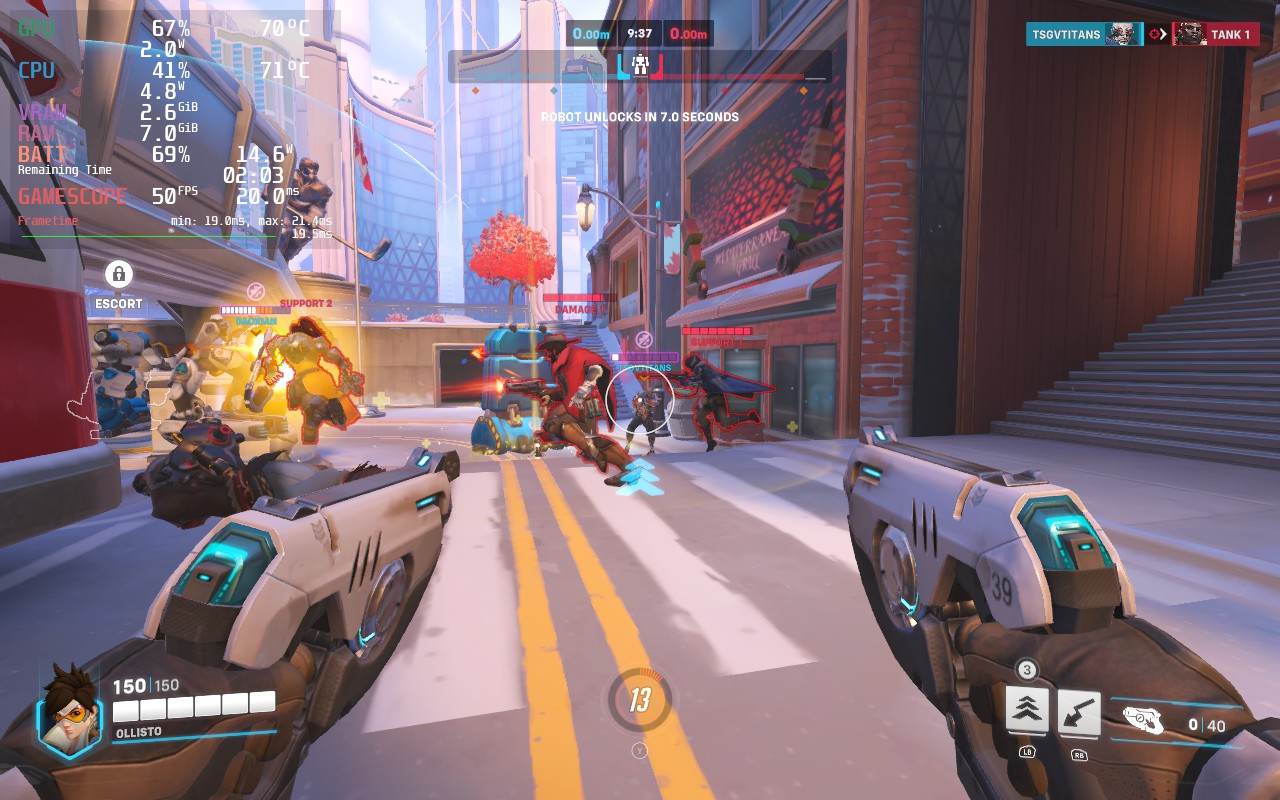
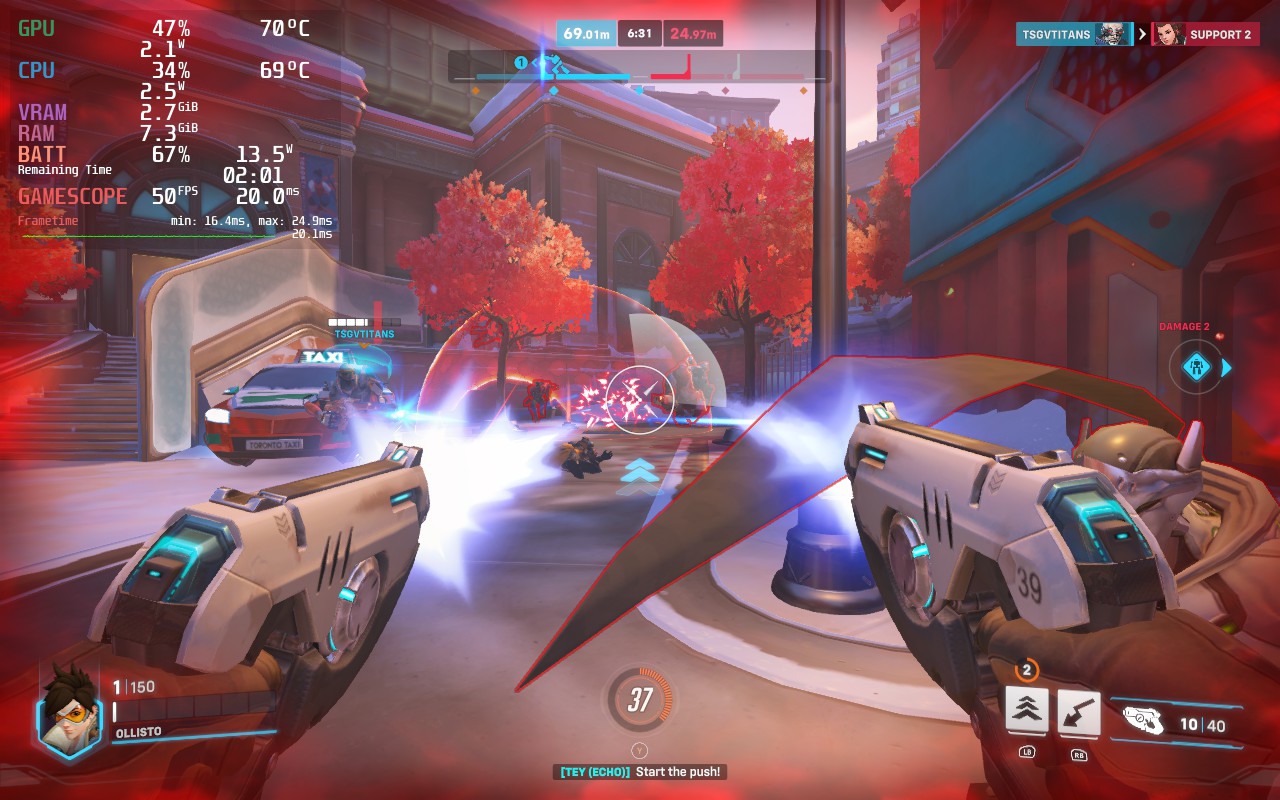
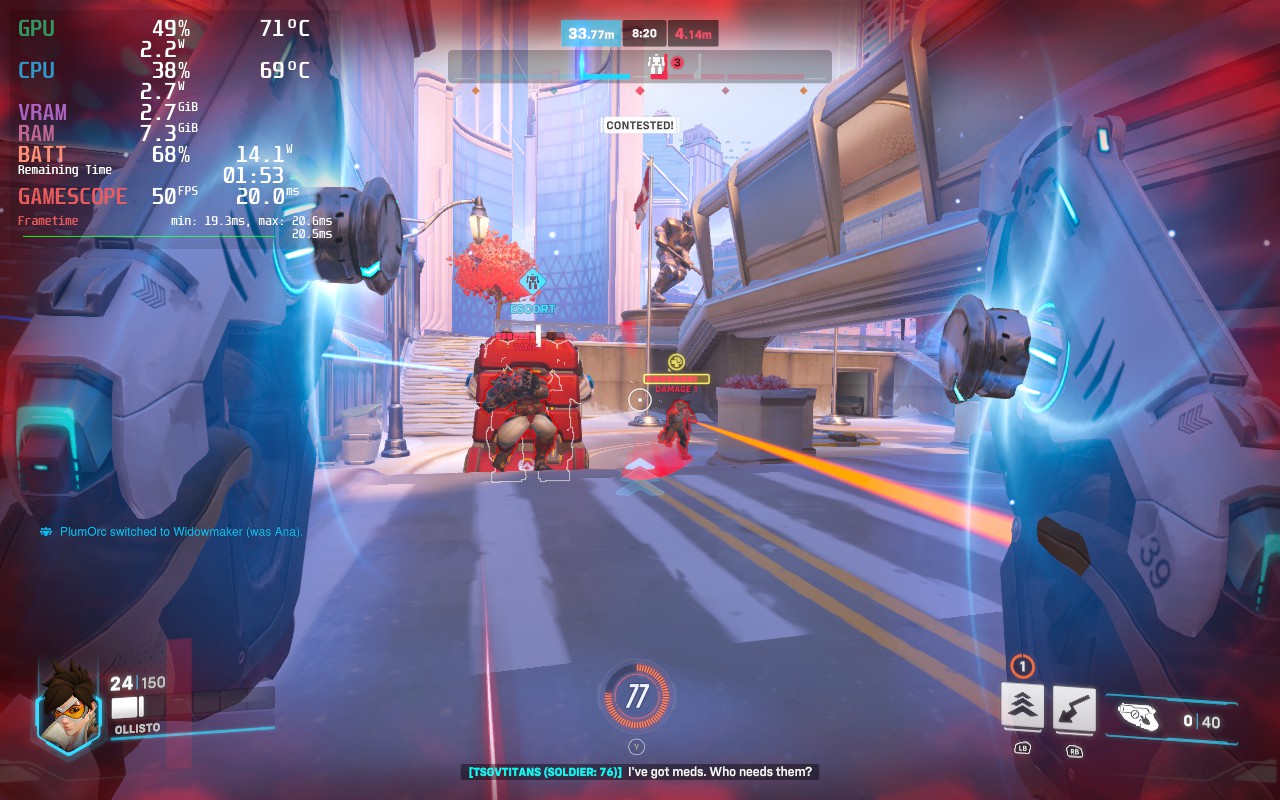
As this is a competitive game, we don’t really want to drop the framerate too much. However, a drop to 50 FPS isn’t too bad, and we can get some extra battery life out of the Steam Deck with these settings. In a similar fashion to the recommended build, select the “Low” preset, then set “Dynamic Render Scale” to Off, “Render Scale” to Custom, and set it to 100%. Then set the Frame Rate to Custom, and set that to 50. You’ll also want to set your SteamOS Frame Rate lock and display to 50 FPS. Here are the settings again so you can copy them exactly. You can click to enlarge the images.
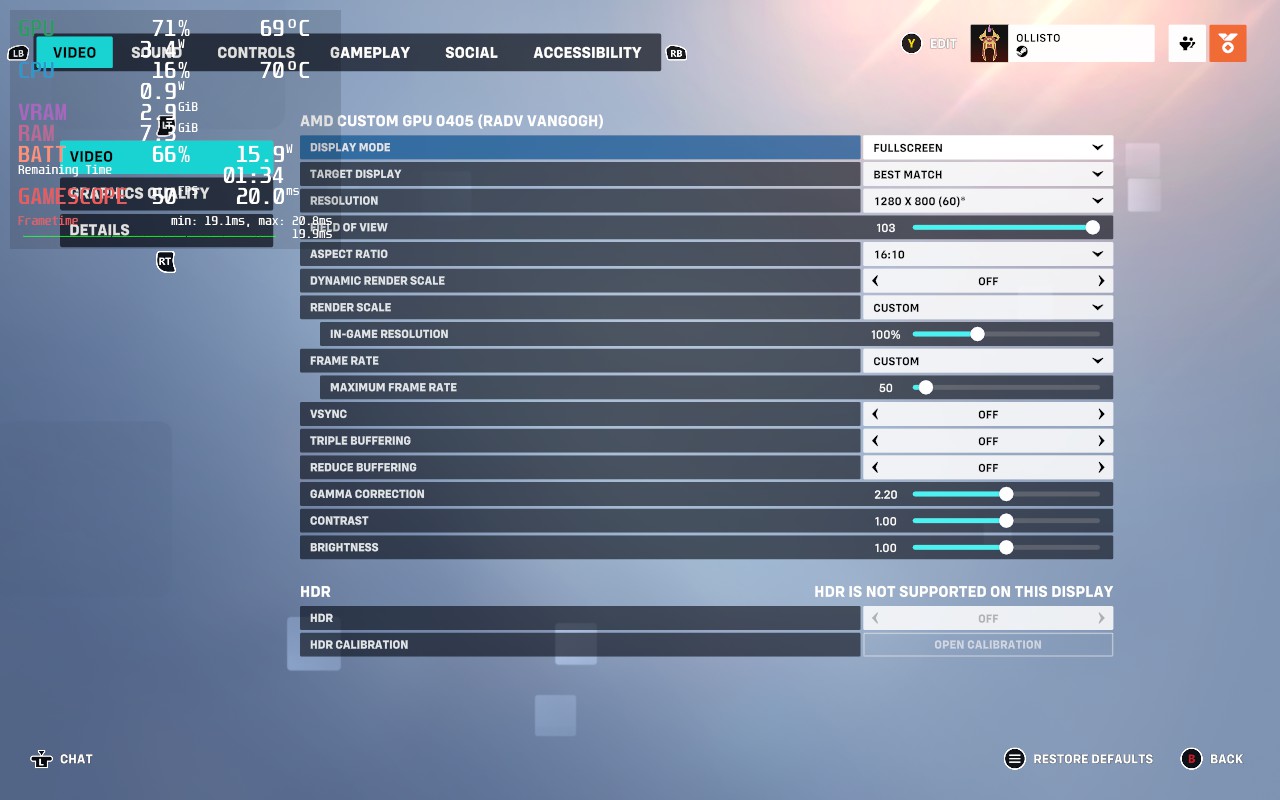
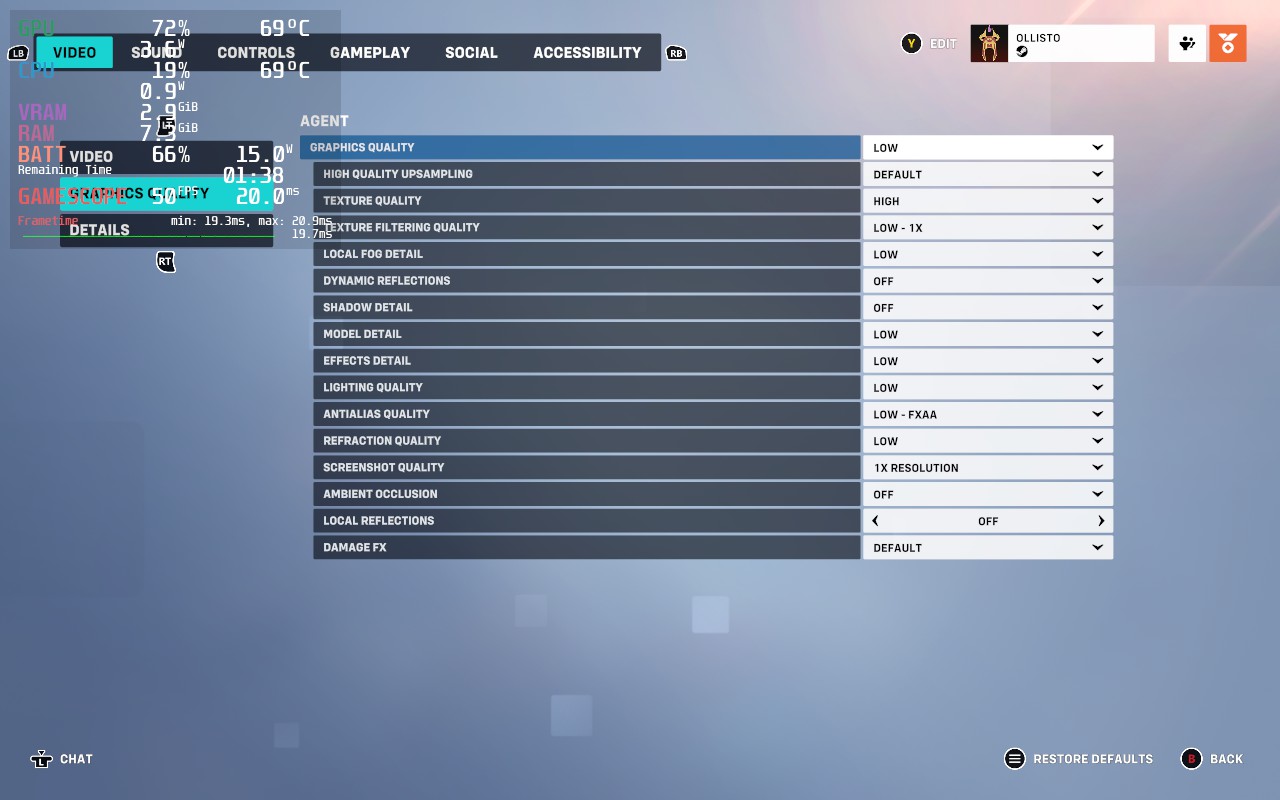
To get the extra life from our battery, we’ll also be lowering our SteamOS TDP Limit to 9W. With these changes, the game may look a little worse, but we’re increasing our battery life from about 90 minutes to almost 3 hours, close to doubling our battery life.
These aren’t the absolute lowest graphics settings. We could lower the resolution or remove the FXAA. However, at this TDP, the Deck becomes CPU-limited rather than GPU-limited, so lowering our graphics wouldn’t make the game smoother or improve battery life. Overwatch 2 seems to occasionally put a lot of stress onto a single CPU thread, so we still need a somewhat high TDP to keep the CPU happy.
Our framerate isn’t quite as stable as it was with the 60 FPS build, but I struggled to notice it during gameplay. We’re also a lot cooler here, running at about 70C instead of 90C.
Accessibility
Overwatch 2 has some nice accessibility options; these include the ability to disable Camera and HUD Shaking, which can give players headaches. You can increase the size of the game’s cursor and subtitles. There is also a customizable color blind filter and the ability for the game to read out text chat to you, as well as type into chat using your own voice.
Conclusion
Despite the “Overwhelmingly Negative” reviews that Overwatch 2 was subjected to upon its Steam launch, I think there’s quite a bit of fun with the game, especially if you have friends who want to play. It’s free, the base mechanics of the game are simple and fun, and it’s well-optimized so that a variety of devices, including the Steam Deck, can run it at a competitive level. If you’re after a team-based first-person shooter, you should give Overwatch 2 a try!
Our review is based on the PC version of this game.
If you enjoyed this review, check out the rest of the content on SteamDeckHQ! We have a wide variety of game reviews and news that are sure to help your gaming experience. Whether you’re looking for news, tips and tutorials, game settings and reviews, or just want to stay up-to-date on the latest trends, we’ve got your back!